Quickstart
From zero to a Cortex agent answering you in chat in about 5 minutes,
most of which is waiting for npm and clicking through your chat
platform's app creation page.
Cortex talks to you through Slack or Feishu (飞书/Lark) — pick either, or
run both at once. cortex init does almost everything. You will not edit
a single config file by hand. This guide tells you what to expect at each
prompt and shows you exactly where to click.
Prefer not to use a terminal?
The desktop app can install and configure Cortex for you on macOS, Linux, and Windows. Choose Install Cortex and wait for installation and startup to finish automatically, then sign in and select a default model. New installations use the hostname, port 3004, and no login service; existing machine, port, and service settings are preserved. Only a failed initialization or start/connection offers repair settings. Slack and Feishu setup is skipped — the app is the interface. Login may open your browser for authorization or MFA, and macOS may require Gatekeeper approval when opening the app.
The installer carries its own Node.js and, on Windows, Git Bash, so no terminal, separately installed Node.js or Git, Homebrew, or administrator access is needed. Local installation supports macOS 13.5+, Linux x86_64 with glibc 2.28+, and Windows 10/11 x86_64; see the desktop guide for details. Continue below for terminal installation and chat-platform setup.
Prerequisites
The following requirements and commands apply to terminal installation.
- Node.js ≥ 22.19.0, required by the PI SDK included with the server.
- A Slack workspace or a Feishu (Lark) organization where you can create an app.
- About 2 GB of free disk for backends, plugins, and logs.
You do not need to install a coding agent beforehand. The PI engine
ships inside the Cortex server package. Claude Code is optional; choosing
its login flow offers installation if it is missing. You do not need to
install Git on macOS/Linux. cortex init creates the directories and env files, and initializes version history only when usable Git is already installed. Git-based history and Git-sourced extensions require Git; Windows shell tools require Git Bash.
Checking your Node.js version
Open a terminal and run:
You should see something like v22.19.0. If the version is below 22.19.0,
or if you see command not found: node, install or upgrade Node.js
using one of the methods below.
Installing Node.js
macOS (Homebrew):
Linux (nvm, recommended):
curl -o- https://raw.githubusercontent.com/nvm-sh/nvm/v0.40.3/install.sh | bash
# Restart your shell, then:
nvm install 22
nvm use 22
Linux (apt, only if your repository provides Node ≥22.19.0):
Windows:
Download the LTS installer from nodejs.org
(choose an LTS version ≥22.19.0). Run the .msi installer
and follow the prompts. After installation, restart your terminal.
Verify the installation:
Step 1 — Install Cortex
This puts the cortex command on your PATH, along with three helpers:
cortex-signal, cortex-hook, and cortex-evidence-export.
If npm install -g fails with a permission error (common on Linux),
prefix with sudo, or better, configure npm to use a user-local
prefix:
mkdir -p ~/.npm-global
npm config set prefix ~/.npm-global
echo 'export PATH=~/.npm-global/bin:$PATH' >> ~/.bashrc
source ~/.bashrc
npm install -g @cortex-agent/server
Step 2 — Run the setup wizard
The wizard walks through the following prompts. Defaults are sensible; hit Enter to accept. Here is what each prompt does and how to answer.
2.1 Which language?
The first prompt picks the language Cortex uses for its
system-generated messages and for the rest of this wizard. It defaults
to your system locale, so a Chinese system pre-selects 中文. The choice
is saved to config/preferences.json and you can change it later with
the !lang command.
2.2 Bundled PI and optional Claude Code
Interactive cortex init uses PI by default without a backend-selection
prompt. PI ships inside Cortex and needs provider credentials, not a
separate installation. Continue with platform and machine settings; provider
detection and login follow after configuration files are written in
section 2.10.
Claude Code is optional and separate from the Anthropic provider in PI. Choosing Claude Code in the login step reuses an existing installation or asks permission to install it if missing.
2.3 Which interaction platform(s)?
? Which interaction platform(s) would you like to use? (space to toggle,
  enter to confirm, leave empty to skip)
❯ ◯ Slack (recommended)
  ◯ Feishu (飞书)
This is a multi-select. Toggle with space, confirm with Enter. Pick Slack, Feishu, or both — Cortex composes the platforms you choose and connects to all of them at once. Each platform you select triggers its own credential-collection steps below (Slack first, then Feishu).
Leaving the selection empty skips platform setup. You can configure a
platform later by editing $CORTEX_HOME/config/.env and restarting the server.
2.4 Slack app setup (step by step in the browser)
Skip this section if you did not select Slack.
Cortex first prints a complete Slack App Manifest and asks if you want it copied to your clipboard. Press c — the manifest JSON is now in your clipboard.
a) Open the Slack API apps page
Go to https://api.slack.com/apps.
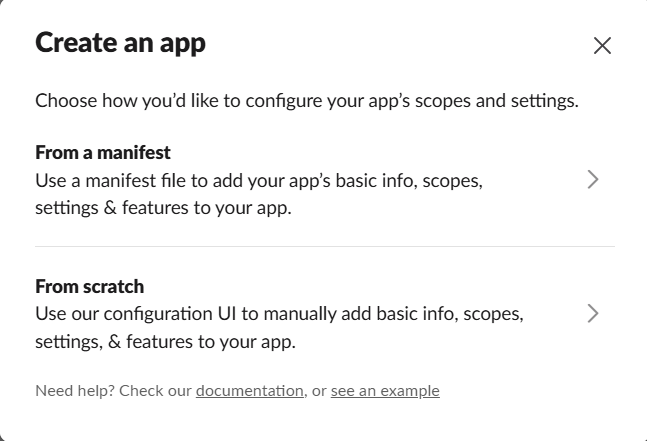
b) Create a new app from manifest
Click the green Create New App button, then click From a manifest. If you don't have a workspace yet, create one first.
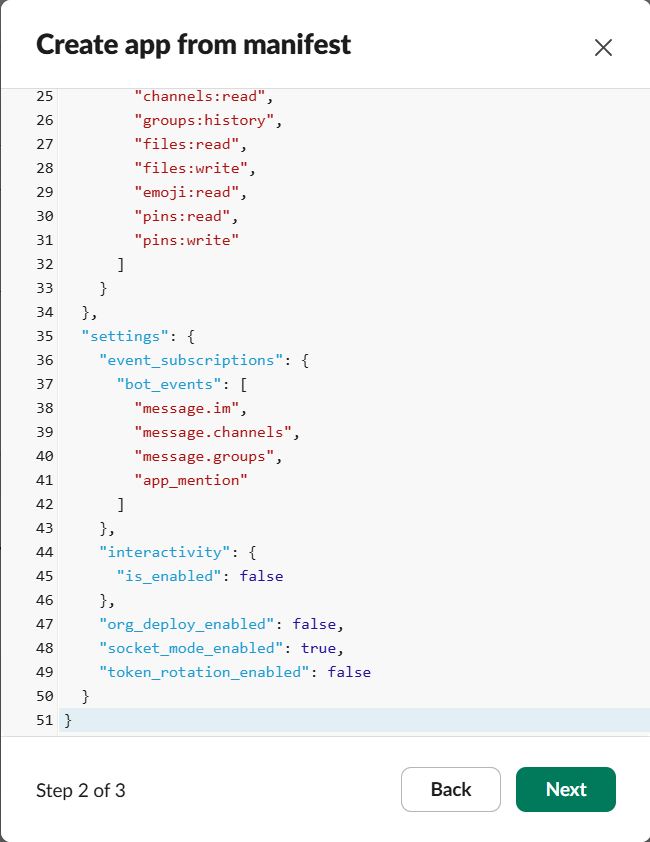
c) Pick your workspace and paste the manifest
- Select your Slack workspace from the dropdown.
- Paste the manifest JSON into the text area (Ctrl+V / Cmd+V). The
manifest was copied to your clipboard by
cortex init, so just paste. - Click Next.
- Review the summary and click Create.
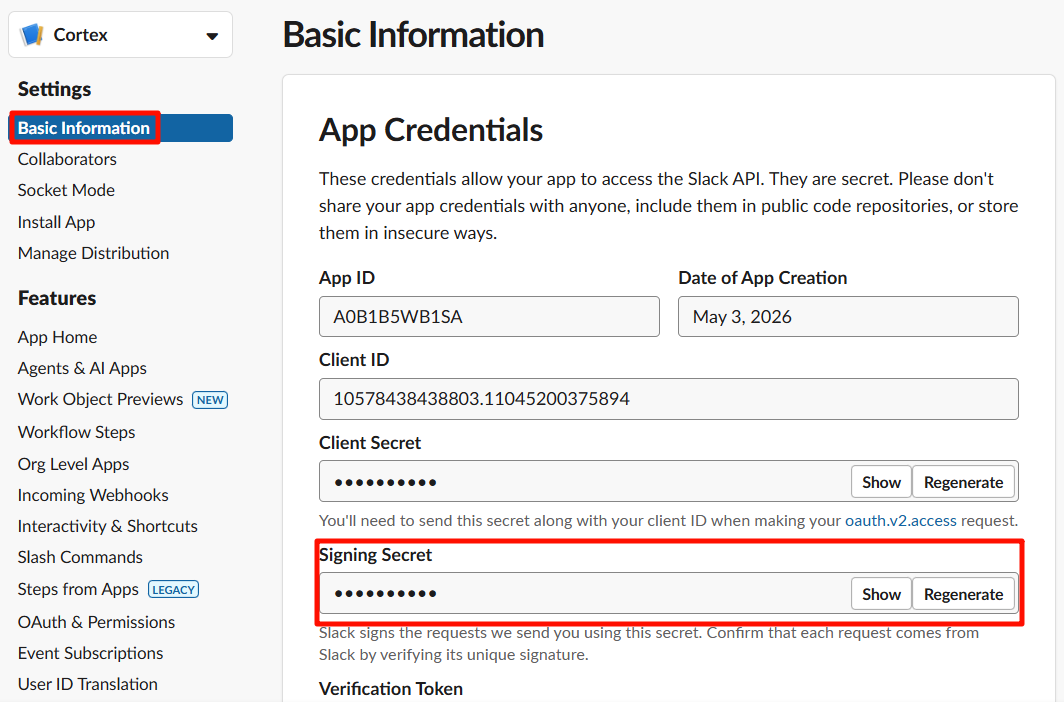
d) Copy the Signing Secret
After creation, Slack drops you on the app's Basic Information page. Under App Credentials, find the Signing Secret. Click Show and copy it.
Back in your terminal, paste this as SLACK_SIGNING_SECRET.
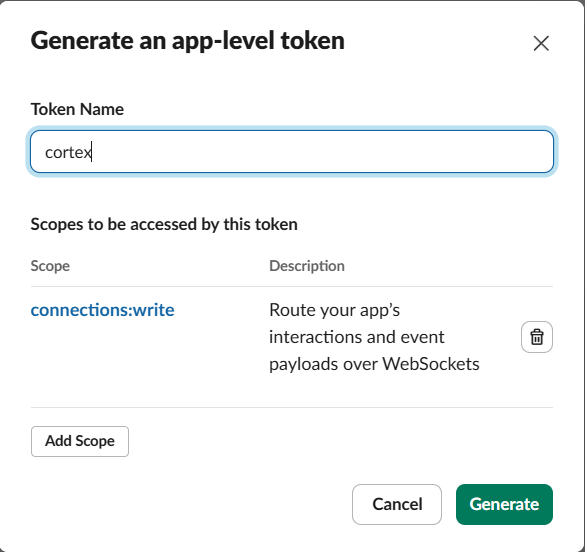
e) Generate the App-Level Token (xapp-…)
Scroll down on the same Basic Information page to the App-Level Tokens section. Click Generate Token and Scopes.
- Token Name:
cortex-socket - Add Scope:
connections:write - Click Generate
Copy the token that appears (starts with xapp-). It only shows once
— copy it now.
Back in your terminal, paste this as SLACK_APP_TOKEN.
f) Install to Workspace and copy the Bot Token (xoxb-…)
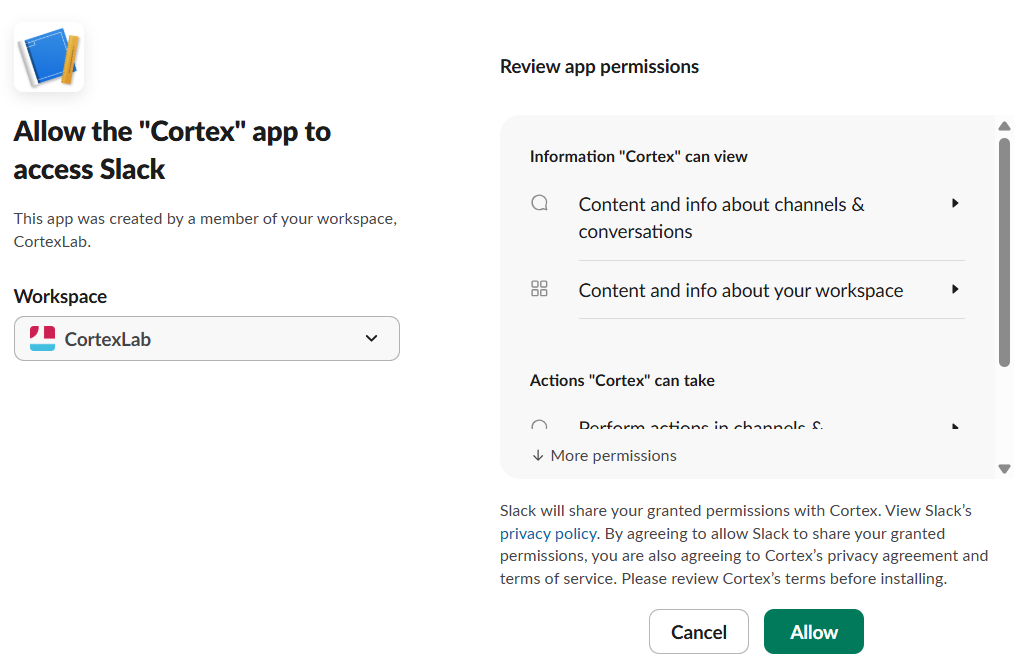
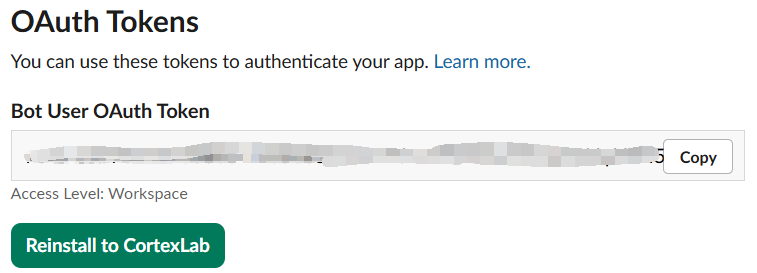
In the left sidebar, click OAuth & Permissions. Scroll up to the OAuth Tokens section and click Install to Workspace. On the authorization screen, click Allow.
After installation, the page shows a Bot User OAuth Token at the
top (starts with xoxb-). Copy it.
Back in your terminal, paste this as SLACK_BOT_TOKEN.
g) Enable the Messages Tab
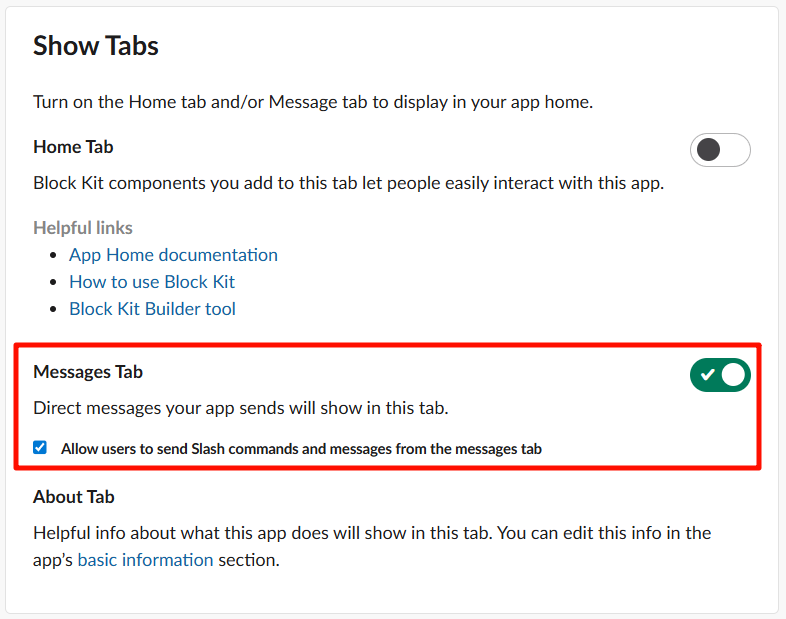
In the left sidebar, click App Home. Scroll down to the Show Tabs section:
- Check Messages Tab (so it appears in the bot's App Home).
- Check Allow users to send Slash commands and messages from the messages tab (so you can DM the bot).
Without this checkbox, you can @cortex the bot in channels but you
cannot send it DMs.
h) Admin channel
Cortex sends startup notices, approval requests, and other operational messages to an admin channel. There is nothing to enter during setup — Cortex auto-detects the admin channel the first time you DM the bot and persists it.
If you'd rather route admin messages to a specific channel (e.g., a
shared ops channel), grab the channel ID from Slack — right-click the
channel name → View channel details → copy the Channel ID from the
bottom of the dialog — and set the adminChannel key in
$CORTEX_HOME/config/settings.json (see
configuration.md). The legacy
SLACK_ADMIN_CHANNEL / CORTEX_ADMIN_CHANNEL variables in .env still work
as a deprecated fallback.
2.5 Feishu app setup (step by step in the browser)
Skip this section if you did not select Feishu. Cortex prints a setup guide and then collects your app credentials.
a) Create a Feishu app
Go to https://open.feishu.cn/app and
click Create Agentic App(创建 agentic 应用). Enter an agent name
(e.g. CortexAgent), pick an avatar, and click Create.

b) Copy the App ID and App Secret
After creation, the app page displays the App ID and App Secret. Copy them.
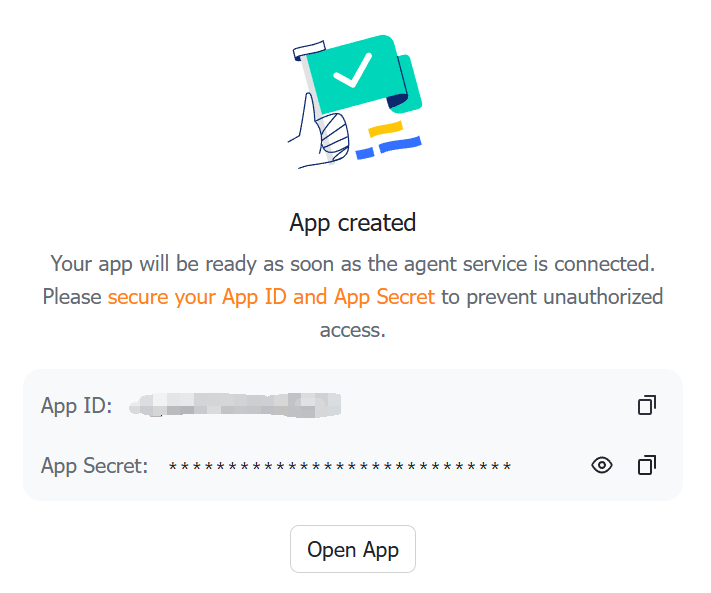
Back in your terminal, paste them at the FEISHU_APP_ID and
FEISHU_APP_SECRET prompts.
c) Subscribe to message events
In the app's event configuration, enable bot events and subscribe to
im.message.receive_v1. Without this subscription the bot never
receives your messages.
d) Domain (optional)
Enter feishu for the Feishu (mainland China) domain or lark for the
international Lark domain. Leave it blank to use the default.
e) Identity for document operations
? Identity for MCP document operations:
  bot   — documents owned by the app
❯ user (Recommended) — documents owned by your Feishu account
Cortex's MCP tools can create and edit Feishu documents (docx, wiki, bitable, sheets, drive). This prompt decides who owns those documents. Choosing bot makes the app the owner. Choosing user makes your own Feishu account the owner, which keeps documents in your personal space — this is the recommended choice.
If you pick user, cortex init immediately runs the Feishu user
login (an OAuth device flow) so you authorize in one sitting. It prints
a URL — open it in any browser, approve access, and Cortex polls for the
token automatically. No redirect URI is needed. If you skip or abandon
the login, your credentials are still saved and you can authorize later
with cortex feishu login.
2.6 Machine name
Defaults to your hostname. Hit Enter unless you want a custom label.
2.7 GPU detection
Cortex runs nvidia-smi and prints the count. Nothing to type. If you
don't have an NVIDIA GPU, it prints 0 — perfectly fine for most usage.
2.8 aistatus token-usage reporting?
Optional, and the prompt defaults to yes. Answering yes puts your token usage on the public aistatus.cc leaderboard, which shows your name, organization, and token counts; answer no to stay off it. If you join, provide a name and an email; the organization is optional. The email only identifies you and is never displayed.
The same choice appears as an optional Public usage leaderboard card on the desktop app's provider setup page, and you can turn it on or off at any time under Settings → Usage. Turning it off keeps your name, organization, and email for the next time you turn it on.
2.9 Register as a system service?
- macOS — creates a
launchdplist at~/Library/LaunchAgents/cc.cortex.agent-server.plist. The daemon starts automatically on login after you run the printed enable command. - Linux — creates a
systemd --userunit (nosudoneeded). The daemon starts automatically on login after you run the printed enable command. To keep it running after you log out, also runloginctl enable-linger. - Windows — not supported. Start manually with
cortex daemon.
2.10 Detect credentials, sign in, and configure models
After writing the configuration files, Cortex automatically detects local Claude Code and PI credentials. This is credential detection, not a live inference test: it makes no paid inference request and does not guarantee that a model call will succeed.
The terminal offers these actions:
- Continue with configured providers — shown once credentials are
detected. Uses them to configure gateway routes and
models.jsonfrom the discovered endpoints. Choose one default model (the recommended model is preselected), then select favorites. The default model is included among favorites even if you deselect it in this step. - Login / install and login Claude Code — choose a backend, provider, and supported OAuth or API-key method. PI is bundled. Claude Code is reused if installed; only choosing its login path prompts to install a missing copy. Login returns to credential detection.
- Rescan credentials — detects credentials again, for example ones configured in another terminal, and returns to this menu.
- Configure later (Agent may be unavailable) — finishes setup without configuring providers; the Agent stays unavailable until credentials and a default model are configured.
You can also sign in from a terminal without a running daemon:
cortex auth login
cortex auth login --backend pi --provider anthropic --auth-type api_key
cortex auth login --backend claude --provider anthropic --auth-type oauth
cortex auth status
Login requires an interactive TTY. Keys and authorization responses are
prompted, never passed as command arguments. The command writes its JSON
result to stdout and human prompts and instructions to stderr.
cortex auth login --help lists the options. See the
CLI reference.
With --answers <file> or --json, init detects credentials and reports
status without starting provider login or waiting for input. Omitted
backends defaults to PI; explicit backends answers retain their supplied
selection and installation behavior. These runs can finish without a
configured provider. Sign in later with cortex auth login or
Settings → Accounts; a successful cortex auth login also configures
the gateway routes, default model, and favorites. cortex setup-gateway runs that
configuration again on its own.
Remote login is also available through !login in Slack or Feishu; see
Backends: Remote login.
For non-interactive model choices, --answers accepts defaultChoice and
favorites, each choice an object with mode and model. An explicit
defaultChoice replaces the saved default; otherwise it is preserved. Favorites
are merged, with the selected default included. In the positional stdin protocol,
the model-selection tail is two lines: mode:model for the default, followed by
comma-separated mode:model favorites.
2.11 When the backend login expires
Backend credentials expire after a while. When they do, agent runs fail with an authentication error such as:
Sign in again with cortex auth login, or use !login in Slack or Feishu
or Settings → Accounts. Claude Code also supports claude plus /login.
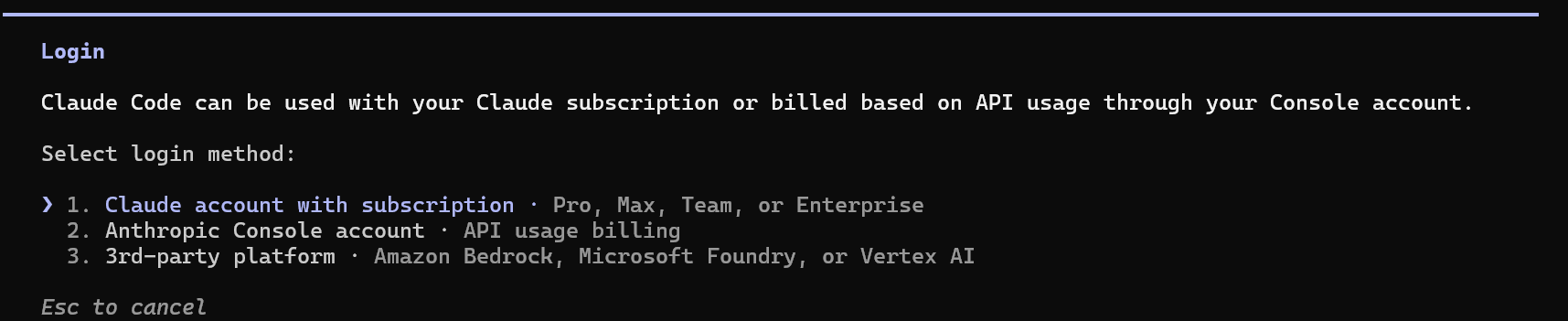
Cortex also notices this for you. When a running agent hits expired authentication, it posts a card naming the provider with a one-click re-login button, and a daily scan warns about credentials that are close to expiring.
Once the login finishes, the refreshed credentials are picked up on the
next agent run. If the endpoint or model changed, re-run
cortex setup-gateway to refresh the gateway and model list, then choose the
desired default in Settings → Models. Sync preserves an existing default.
When the wizard finishes you will see:
What cortex init created
Everything lives under CORTEX_HOME (default ~/.cortex/):
~/.cortex/
├── .git/                       # optional: created when usable Git is installed
├── .gitignore                  # keeps runtime state and secrets out of history
├── AGENTS.md                   # root agent context (seeded from defaults)
├── config/
│   ├── .env                    # CORTEX_PLATFORM list + platform tokens + CORTEX_MACHINE
│   ├── feishu-user-token.json  # Feishu user-identity token (only when FEISHU_AUTH_MODE=user)
│   ├── preferences.json        # operator UI language
│   ├── budget.json             # daily/monthly budget limits
│   ├── machines.json           # this machine's capabilities (gpuCount, path)
│   ├── mcp-config.json         # direct-session MCP servers
│   ├── mcp-config-core.json    # remote execution/time layer
│   ├── mcp-config-empty.json   # no MCP servers
│   ├── mcp-config-interaction.json # Shared interaction layer
│   ├── models.json             # default engine and favorites, once credentials are detected
│   └── environments/           # execution environments: main.json, creative.json
├── data/
│   ├── agent-state.json        # channel selections, model memory, new-session choice, default agent
│   └── schedules.json          # seeded built-in schedules
├── context/                    # the project log lives here
│   ├── AGENTS.md, projects/, decisions/, scans/, ideas/, retrospectives/, user/
├── plugins/                    # your plugins (built-in ones are read from the install)
├── prompts/                    # your directives, system prompts, templates
├── hooks/                      # your hook scripts (.mjs)
├── .claude/                    # Claude Code settings
└── logs/                       # daemon + LLM logs
You should not need to edit any of these by hand for normal use.
Running cortex init again leaves an existing .env, machines.json, agent
state, language preferences, schedules, and budget untouched, and regenerates
the MCP configs. cortex init --force resets machines.json, agent state,
language preferences, schedules, and budget, and updates the keys init writes
in .env while keeping the existing client and webhook tokens and any keys you
added by hand. Existing execution environments and scaffold files are preserved
either way. Interactive setup asks before replacing an existing default model;
favorites are merged with the saved list. Back up
customized files before using --force. To add a platform to a working
install, add its keys to .env and restart the daemon
(see 2.3).
Cortex's built-in plugins, hooks, rules, subagent roles and system prompts are
read from the install, not copied here, so plugins/, prompts/ and hooks/
start empty. A file you put there replaces the built-in one of the same name or
adds a new one; see
Built-in assets and your overrides.
~/.aistatus/ separately holds:
~/.aistatus/
├── gateway.yaml                # gateway routing config (generated once credentials are detected)
└── config.yaml                 # aistatus uploader settings (your name/org/email)
Step 3 — Start the server
cortex daemon         # supervised in the background, restarts on crash + hot-reload
# or
cortex start          # foreground, Ctrl-C to stop
cortex daemon returns at once and leaves the server running in the
background; cortex daemon stop stops it.
If you chose to register a system service in Step 2.9, init writes the service file and prints its enable command. Run that command to start it:
# Linux user service
systemctl --user enable --now cortex
# macOS
launchctl load ~/Library/LaunchAgents/cc.cortex.agent-server.plist
Check the daemon with cortex daemon status. cortex config shows resolved
paths and initialization status, and cortex doctor checks the runtime, login,
platform, and gateway (--fix repairs what it can).
Open the Web workbench
The browser workbench and the desktop and Android apps connect to the server's Web UI endpoint, which terminal setup leaves off. Turn it on with:
cortex ui enable generates the client token if needed, sets
CORTEX_UI_HTTP=1 and CORTEX_UI_PORT=3004 in $CORTEX_HOME/config/.env,
allows the native apps' origins, and prints the local address. Open
http://127.0.0.1:3004 in a browser on the server and sign in with the value of
CORTEX_CLIENT_TOKEN from .env, or enter the same address and token in the
desktop app. To reach the workbench from
another computer, see Browser Access.
Step 4 — Send your first messages
Now the fun part. Open Slack or Feishu, find the Cortex bot you just installed, and start a direct message with it. In the Web workbench, send the same messages from the composer of a new session.
4.1 Say hello
Send a DM to the bot:
The first DM is what Cortex uses to auto-detect your admin channel
(unless you set adminChannel explicitly in config/settings.json). You
should get a reply within a few seconds.
4.2 Create your first project
Give Cortex a mission. Cortex will create the project, set up the directory structure, and confirm back to you:
create a project called "hello-world" — I want to build a
simple web dashboard that shows the weather in my city
Cortex replies with the project structure it created and what it understood the mission to be.
4.3 Check project status
Cortex reads the project's STATUS.md, mission, and recent experiment
records, then gives you a summary of where things stand.
When work runs on several workers or across many hours, Cortex opens a board in the Web UI: a status page beside the conversation with the task's state, plan, and decisions. You can also ask for one. See Boards.
What to read next
- The Slack app setup failed, or you want to do it before running
cortex init— read slack-setup.md. - You want to know every config file and env var Cortex understands, or override one of the auto-generated paths — read configuration.md.
- You want to know every CLI subcommand and flag — read cli-reference.md.
- You want to switch backends or add another provider — read backends.md.
- You want Cortex to hand work to subagents, or to lead persistent worker sessions — read backends.md and team.md.
- You want to connect remote machines to Cortex — read cross-machine.md.
- You want to understand the project log structure (experiments, knowledge, patterns) — read memory.md.